September 24, 2010
SEO Show Post name First and then Blog name
 4:52 PM |

ONLY FOR BLOGGER
So, did you create a blog and having trouble finding some traffic (users). Most important thing in your blog is the Post. No one at first cares about what is the name of your blog, they will come for what you have on that blog. Now, here’s the problem, when users surf the web and do searches, the search shows their result, but wait, where did your blog go. It is at the end, with your Blog name in the beginning followed by your post name, so ultimately hardly any one sees it.
The image below is main page, but this is how it looks with blog name first.

Let’s bring your Post Title in the beginning and then your blog name.
When the changes occur, it will look like the image below.

Sign-in to your blogger account; go to Design and then Edit HTML.
Now look for: (at the moment I can't place html code in post so plz open the paste)
http://tinypaste.com/8a6d9d
You can press CTRL+F to open IE search called FIND and type the whole above thing in it.
Once found, replace it with: (at the moment I can't place html code in post so plz open the paste)
http://tinypaste.com/e4409
Click save. It is Done. The changes will take effect as soon as google cache’s your blog. When Does Google Actually Cache Your Blog?
Once cached, just sit back and see the traffic roll in.
According to me this is the best Search Engine Optimization trick.
So, did you create a blog and having trouble finding some traffic (users). Most important thing in your blog is the Post. No one at first cares about what is the name of your blog, they will come for what you have on that blog. Now, here’s the problem, when users surf the web and do searches, the search shows their result, but wait, where did your blog go. It is at the end, with your Blog name in the beginning followed by your post name, so ultimately hardly any one sees it.
The image below is main page, but this is how it looks with blog name first.
Let’s bring your Post Title in the beginning and then your blog name.
When the changes occur, it will look like the image below.
Sign-in to your blogger account; go to Design and then Edit HTML.
Now look for: (at the moment I can't place html code in post so plz open the paste)
http://tinypaste.com/8a6d9d
You can press CTRL+F to open IE search called FIND and type the whole above thing in it.
Once found, replace it with: (at the moment I can't place html code in post so plz open the paste)
http://tinypaste.com/e4409
Click save. It is Done. The changes will take effect as soon as google cache’s your blog. When Does Google Actually Cache Your Blog?
Once cached, just sit back and see the traffic roll in.
According to me this is the best Search Engine Optimization trick.
 Labels:

August 16, 2010
Returning Soon...
11:04 AM |
It's been a long time that I've posted, and now I plan to return with more tips and tricks and updates, and lots more.
The only thing I try is to keep the content fresh and exclusive, but ofcourse there's always someone who knows it, so it's hard not to duplicate, but what I do is, that I write it in my own way.
My apologies if any subject is duplicated.
For now I'll be placing the images/screenshots to a image host, and will be working on the template and the site map.
The sooner I'll be finished with this, I'll start posting.
The only thing I try is to keep the content fresh and exclusive, but ofcourse there's always someone who knows it, so it's hard not to duplicate, but what I do is, that I write it in my own way.
My apologies if any subject is duplicated.
For now I'll be placing the images/screenshots to a image host, and will be working on the template and the site map.
The sooner I'll be finished with this, I'll start posting.
April 29, 2010
Change the background of Windows Media Player 12
5:38 AM |
There are by default 7 backgrounds in WMP which can be changed by editing Registry.
Now, how to actually place any wallpaper or picture as WMP background.
You will need Restorator 2007 to edit few things.
1) Run Registry Editor and navigate to: HKEY_CURRENT_USER\Software\Microsoft\MediaPlayer\Preferences
2) Search for a DWORD value named LibraryBackgroundImage
3) Change it to 0 to 7 and see the effect. only 0-7 are valid data for this DWORD value.
Now, change it to 6
Go to C:\windows\system32
Look for wmploc.dll (back it up, and take ownership)
Open it with Restorator
Navigate to 257
Now look for LIBRARY_BACKGROUND 7.PNG
Right-click, assign to any pic in the format given i.e jpg
Any resolution and bit will work.
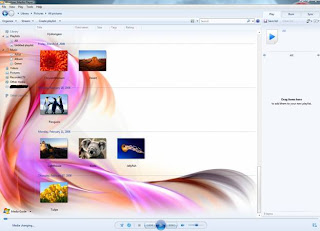
Now, how to actually place any wallpaper or picture as WMP background.
You will need Restorator 2007 to edit few things.
1) Run Registry Editor and navigate to: HKEY_CURRENT_USER\Software\Microsoft\MediaPlayer\Preferences
2) Search for a DWORD value named LibraryBackgroundImage
3) Change it to 0 to 7 and see the effect. only 0-7 are valid data for this DWORD value.
Now, change it to 6
Go to C:\windows\system32
Look for wmploc.dll (back it up, and take ownership)
Open it with Restorator
Navigate to 257
Now look for LIBRARY_BACKGROUND 7.PNG
Right-click, assign to any pic in the format given i.e jpg
Any resolution and bit will work.

April 5, 2010
Restrict use of ipconfig command
3:46 AM |
You can type ipconfig in command prompt to view the IP’s.
If you want to restrict the use of this command, follow the steps below.
Go to C:\Windows\System32\
Ipconfig file will be situated in here. You will need to take ownership to make any changes to it, and the right-click take ownership might not work here, so it has to be done manually. See here...
Make a backup of ipconfig file just in case.
Now all you have to do is to rename it anything you wish. The command won’t work anymore. To make it work again, just rename that file to ipconfig.
Subscribe to:
Posts (Atom)
